
Fix: RDP Session Drops When Connecting a VPN Inside a VM
Keep an RDP session connected when enabling a client VPN inside a Windows VM or Server by configuring split tunneling.

When you are connected to a Windows VM or Server through Remote Desktop and then connect a client VPN from inside that session, the RDP connection may drop immediately. This usually happens because the VPN takes over the default gateway and breaks the return path for the existing RDP traffic.
The fix is straightforward and has worked across many Windows versions.
The Setting
Uncheck Use default gateway on remote network on the VPN connection.
This enables split tunneling, so only traffic intended for the remote network goes through the VPN. Your RDP session continues using its original network path and stays connected.
Steps
- Open Network Connections (
Win + R, then enterncpa.cpl). - Right-click the VPN connection and select Properties.
- Open the Networking tab.
- Select Internet Protocol Version 4 (TCP/IPv4) and click Properties.
- Click Advanced….
- Uncheck Use default gateway on remote network.
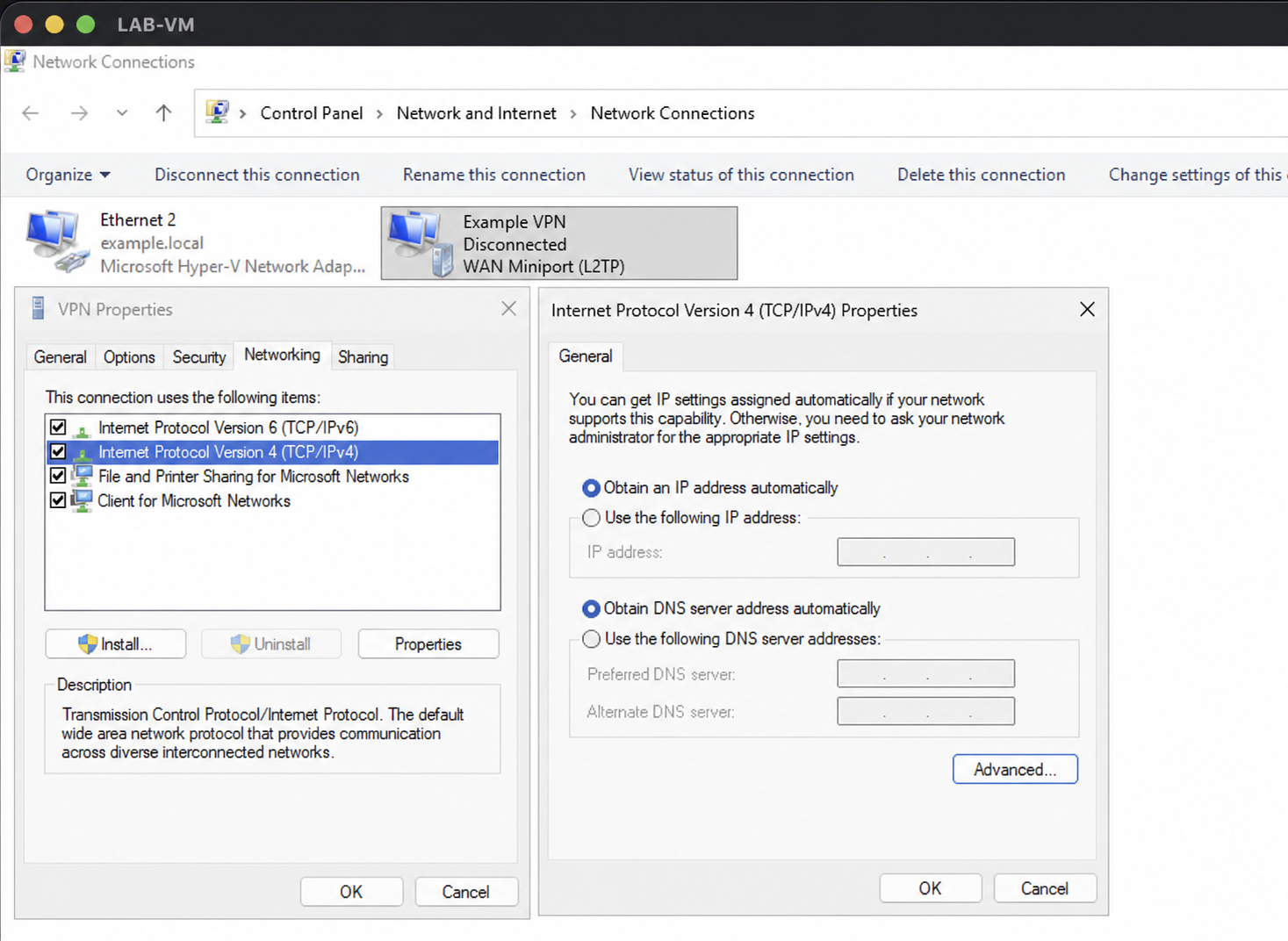
Leave the box unchecked, then close the open settings windows with OK.
PowerShell Version
You can enable split tunneling from PowerShell instead:
Set-VpnConnection -Name "YourVPNName" -SplitTunneling $trueReplace YourVPNName with the name of the VPN connection configured in Windows.
Notes
- You may still need to add specific routes for the networks you want to reach through the VPN.
- This approach works on Windows Server 2025 and earlier versions.
- Some third-party VPN clients hide or override this setting. Use the client's own split-tunnel option in those cases.
- Split tunneling changes how traffic is routed. Confirm that the configuration complies with your organization's security requirements.
Once this is set, you can connect the VPN inside an RDP session without losing the session.
Related Article
For guidance on building the VM itself, see Setting Up Virtual Machines for Automation Testing.